Accepting Multiple
Payments
There are times when a customer may have some cash and want to put the rest on a credit card or may have to use two credit cards to manage balance limits. In these cases, you need to be able to accept multiple payments on an invoice. SuccessWare®21 allows you to record multiple payments and/or deposits on any customer invoice.
Setup
There is no setup required to be able to record multiple payments.
How to I Record
Multiple Payments and/or Deposits
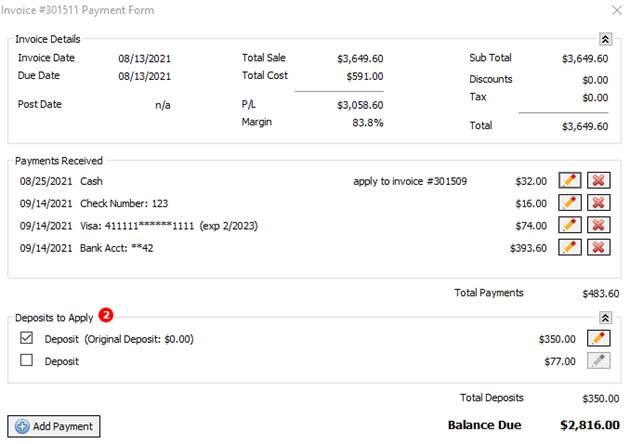
Multiple payments on an invoice can be recorded in the Invoice Payment Form. On the invoice, click the Apply Payments button to open it.
To record one or
more payments
1. Click the Add Payment button. This will open a payment info window.
2. Enter the payment information and follow directions.
3. To add additional payments, follow these same steps again.
To apply a posted
deposit
1. The Deposits to Apply section of the form will list any posted deposits for this customer
2. Place a checkmark in the Apply to Invoice box for those you wish to apply to this invoice
Posting and Adjusting
Payments
Payments will be posted when you post the invoices. When you adjust the invoice, payments will be adjusted as well.
Please note that payments that have been processed as part of a deposit and deposited into bank accounts, cannot be adjusted and will remain posted when adjusting an invoice. In these cases, any payment not part of a deposit will be adjusted with the invoice.
Editing and Deleting
Payments
If a payment is not posted or is being adjusted, it can be
edited. Click the edit button  next
to the payment. You can also delete payments that are not posted or are
currently being adjusted. Click the delete button
next
to the payment. You can also delete payments that are not posted or are
currently being adjusted. Click the delete button  next
to the payment.
next
to the payment.
Click the Ellipse button  to
access other useful operations for the payment record.
to
access other useful operations for the payment record.
· Copy to Agreement – will copy the payment information to an agreement to be used with periodic billing.
· Copy to Project – will copy the payment information to a project to be used with project billing.
· Unmask Bank Account – if you have permission, this will unmask and show the bank Account Number.
If a payment came in from the field with this invoice but was to be applied to another, it will be listed here with a note indicating the invoice it was applied to.
Deposits
Available deposits consist of posted deposits with unapplied balances. Any available deposits on account will be displayed at the bottom of the Invoice Payment Form. To apply one or more deposits to the selected invoice, simply check the box for the deposits you wish to apply. The deposit will be applied to the invoice when the invoice is posted. Note that adjusting the invoice will remove the allocations.
If this customer has any unposted deposits, a red badge will appear at the top of the “Deposits to Apply” list. The badge will indicate the number of unposted deposits recorded in the system. You can post all unposted deposits by clicking on this badge. This will show you a list of unposted deposits for this billing account and let you post them. Once posted, they will show up in the deposit list so you can apply to this invoice.
Unposted Deposits
and Payments
Unposted deposits can exist if deposits are being submitted from the field. The deposits must be posted before you can apply them to invoices. There are several ways SuccessWare®21 helps to make sure your deposits from the field are deposited and ready for you to process.
Unposted payments can also exist if payments are submitted from the field. This feature will become available with the SWPay feature.
When recording
payments on an invoice…
On the Invoice Payment Form, if the customer has any unposted deposits, a red badge will appear next to the deposit list indicating the number of unposted deposits. Click this badge to open a form where deposits for that account can be posted.
When accessing a
customer…
On the Customer Form, if the customer has any unposted deposits or payments, a red badge will appear next to the Account Number, click this badge to open a form where deposits and payments for that account can be posted.
When accessing
billing accounts…
On the Billing Account History Form, if the customer has any unposted deposits or payments, a red badge will appear next to the Account Number indicating the number of unposted deposits and payments, click this badge to open a form where deposits and payments can be posted.
When reconciling
the Undeposited Funds account…
On the Account Register, when reconciling the Undeposited Funds account, if there are any unposted deposits or payments, a red badge will appear next to the text “Select an Activity” indicating the number of unposted deposits and payments for the company, click this badge to open a form where all unposted deposits and payments can be posted.
Reporting
Invoice Reports
Each payment and/or deposit applied to the invoice will be
displayed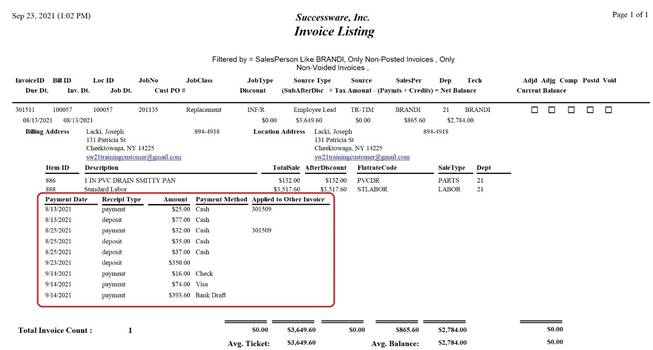
The Invoice Manager and the Invoice Form now include both posted and unposted payments and deposits in the invoice balance. In the Invoice Manager, the change is reflected in the Balance column. In the Invoice Form, the change is reflected in the Current Balance.
Related Permissions
Not applicable
Related Events
Not applicable